
Splicon
Split View icons, instantly.
The Split View icon maker for iPad — create a launcher icon for any app pair in seconds.
The Split View icon maker for iPad — create a launcher icon for any app pair in seconds.
Switching apps takes just 1–2 seconds. Over a year, those seconds add up to something alarming.
Sources: American Psychological Association / Wichita State University / Jon Peddie Research
Heavy multitasking overloads working memory and has been shown to temporarily lower IQ by up to 10 points. That's not a willpower problem — it's a design problem.
Splicon's job is simple: generate a beautiful icon. Once you set it up in the Shortcuts app, one tap launches Split View — every time.
Search over 1 million App Store apps and pick the pair you use most. They don't need to be installed on your device.
Choose a split style, generate the icon, and save it to your photo library. Done in seconds.
In the Shortcuts app, add a "Split Screen" action and assign the icon you just saved. Place it on your Home Screen.
iPadOS Shortcuts can launch Split View, but the icon it gives you is a generic glyph — every shortcut you build looks the same on your Home Screen. Splicon solves that by generating a real icon: the two actual app icons you picked, composited side by side into one image.
Set that image as your Shortcut's icon and your Home Screen row reads at a glance — "GoodNotes + Safari" looks different from "Zoom + Notion" the moment you look at it, instead of a row of identical shortcut symbols. That's the whole idea: not a new way to split the screen, just a one-tap, visually distinct way to get there.
A Split View icon is a Home Screen shortcut whose image shows both apps it launches — instead of one generic icon, you see the two real app icons side by side, so you know exactly what it opens before you tap it.
Pick two apps in Splicon, generate the combined icon, save it to Photos, then assign that image to a Split Screen action in the Shortcuts app. The full walkthrough is in our setup guide.
Splicon is built specifically for this — pick any two apps from the App Store and it composites their icons into one combined image sized for a Home Screen shortcut.
No. Splicon is free to try for your first 3 icon pairs. Splicon Pro is a one-time $4.99 purchase — no subscription, no recurring charge.
Splicon requires iPadOS 17.0 or later. Split View itself is supported on any iPad model that runs a compatible iPadOS version.
Yes — Splicon Pro includes multiple split styles (50:50, 60:40, 70:30, and diagonal), and the ratio you pick is baked into the generated icon.
Research, studying, work, entertainment. Splicon icons keep you in flow across every context.
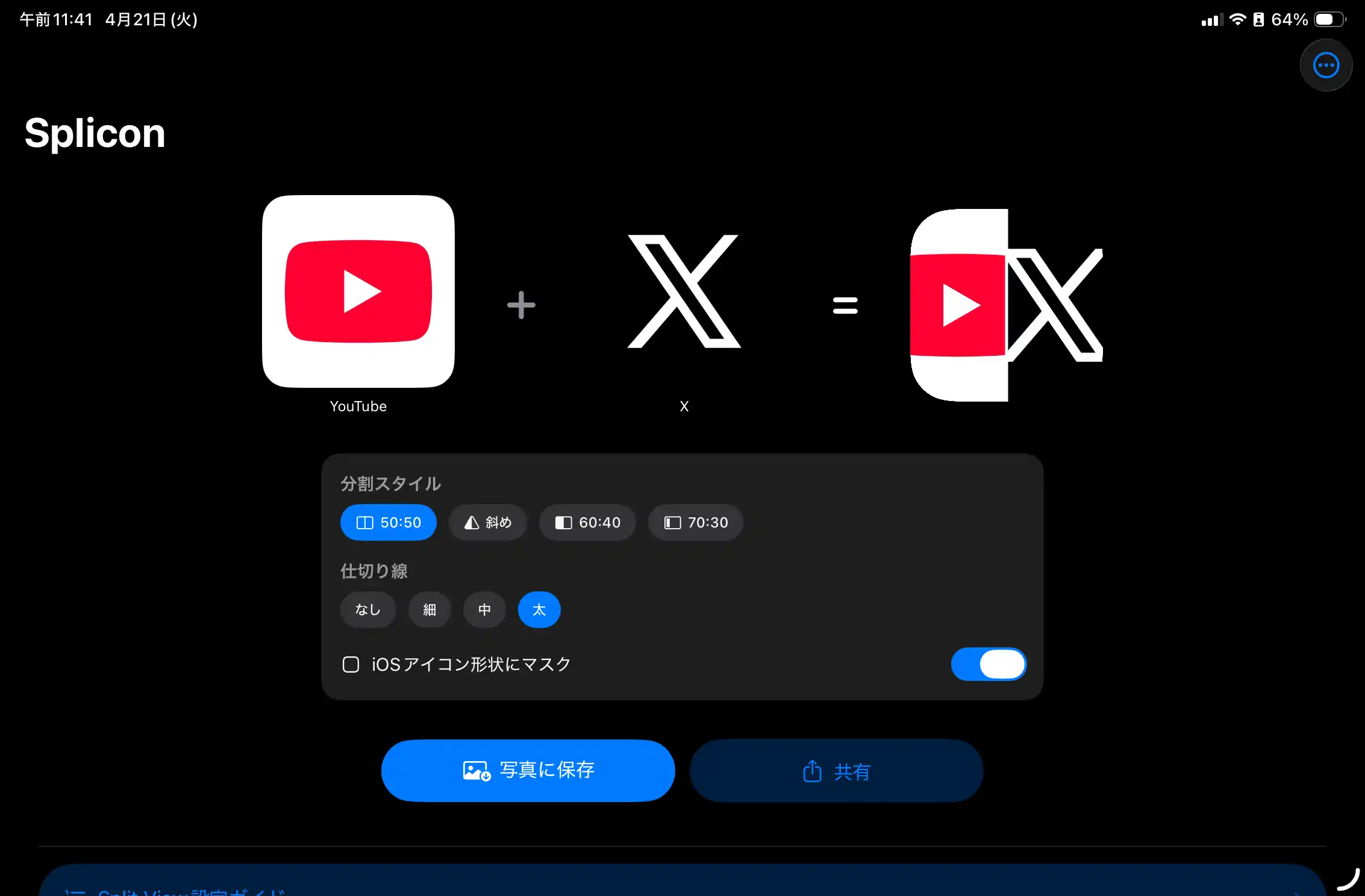
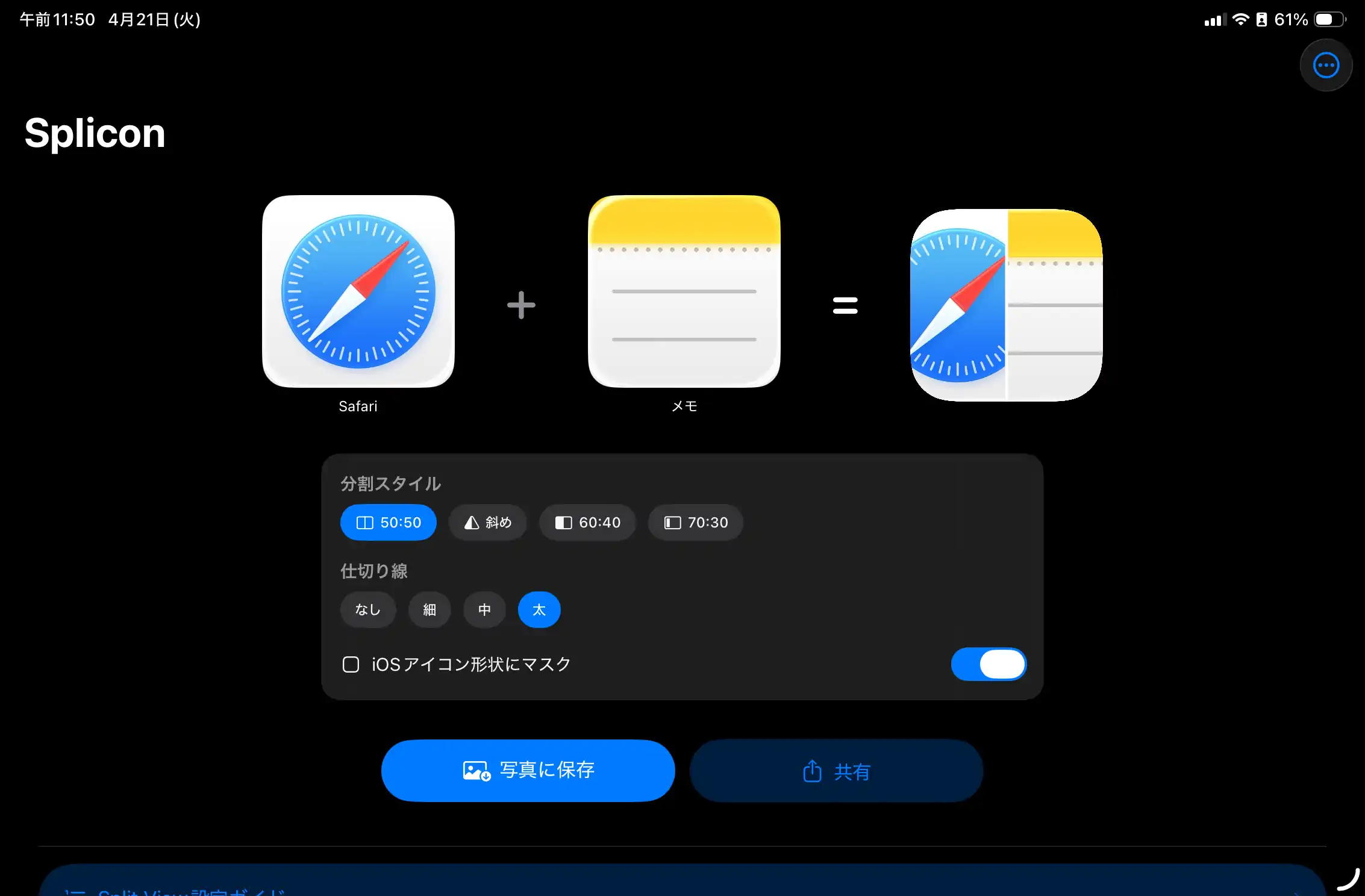
Watch videos and browse related posts side by side. Double the signal.
Research and capture in one view. No copy-paste, no context break.
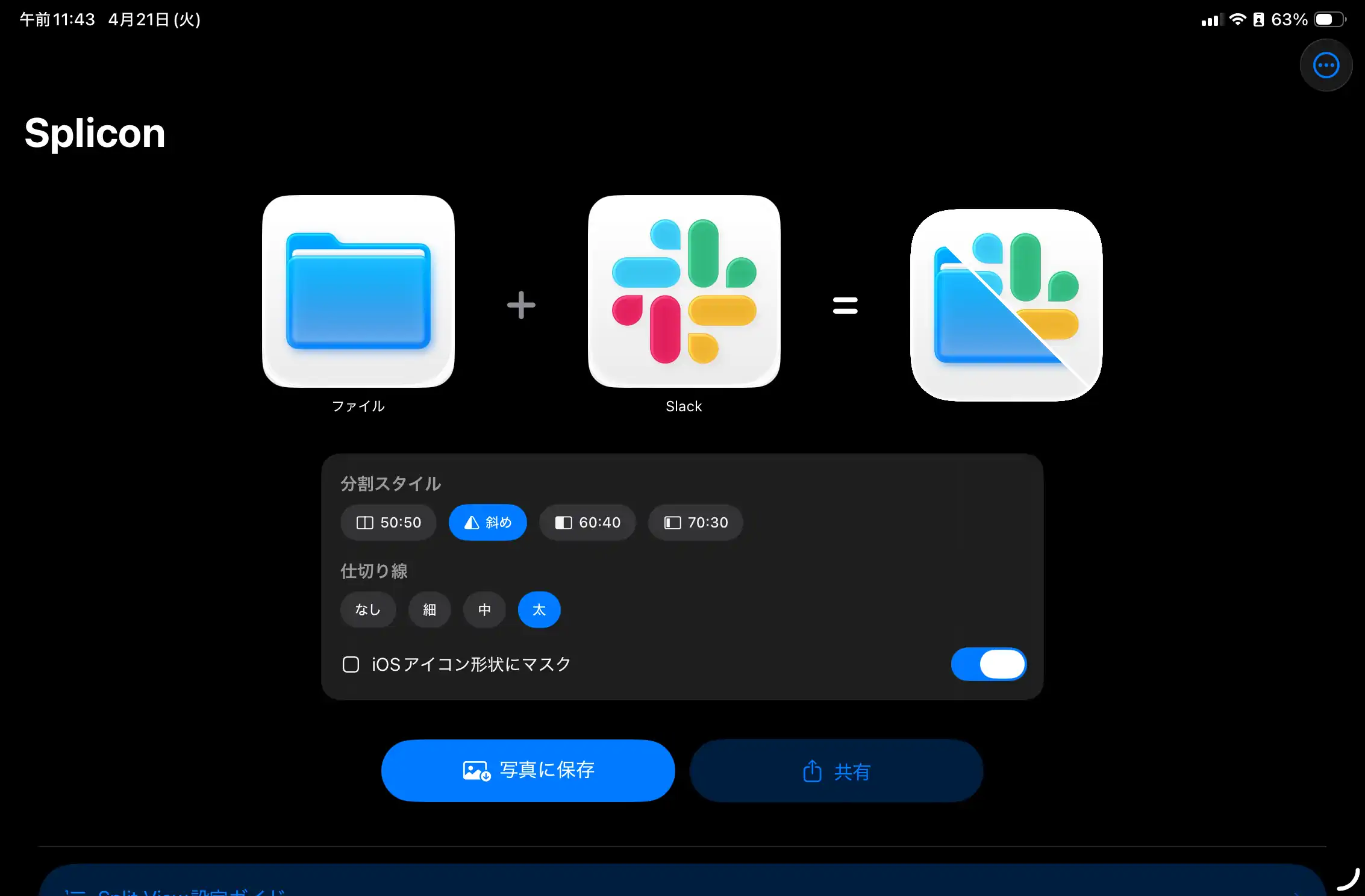
Review docs and share to Slack without switching screens. Frictionless.
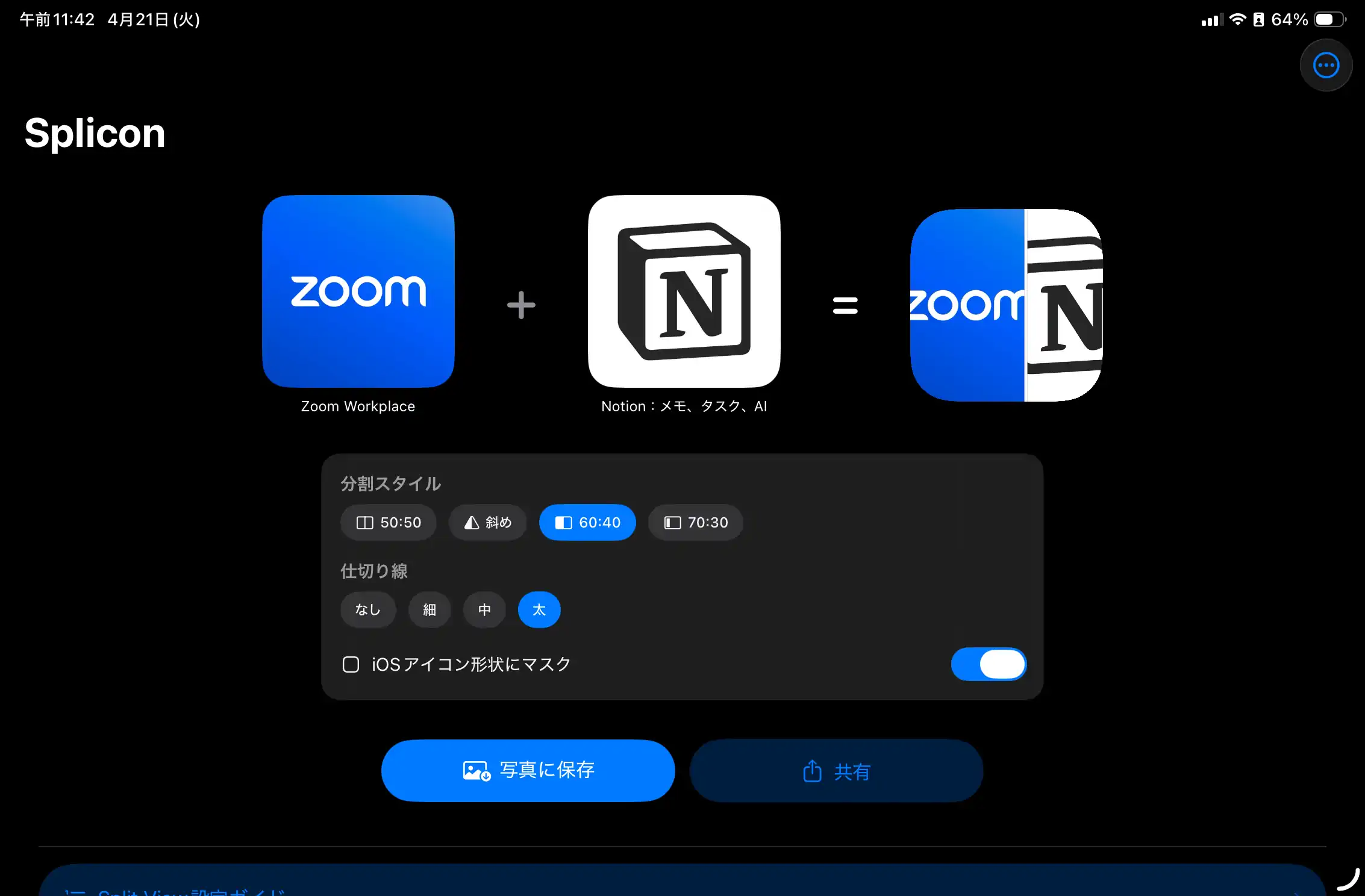
Take live notes during calls. No transcription cleanup needed after.
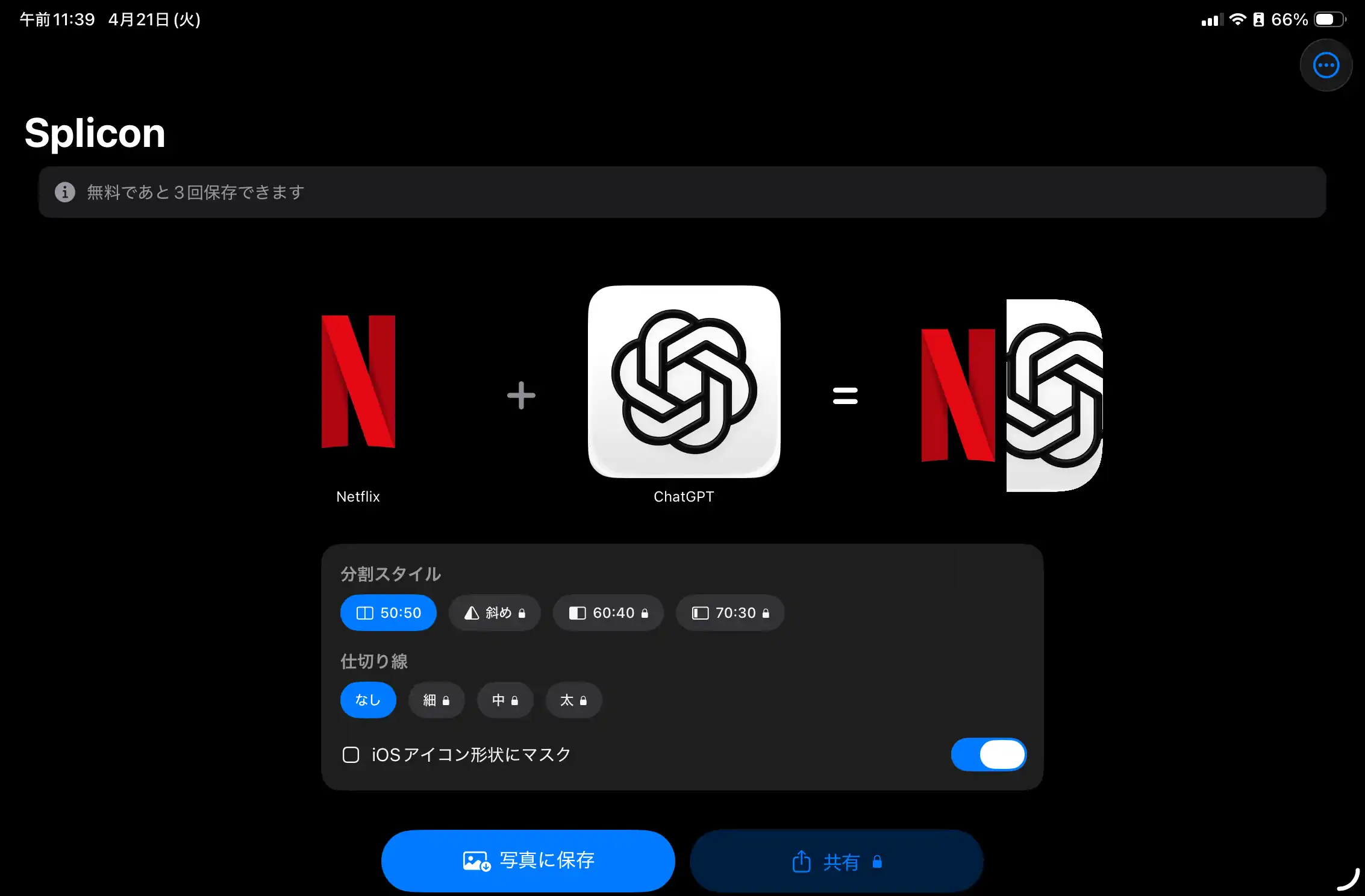
Stream and ask an AI about what you're watching. Passive input becomes active learning.
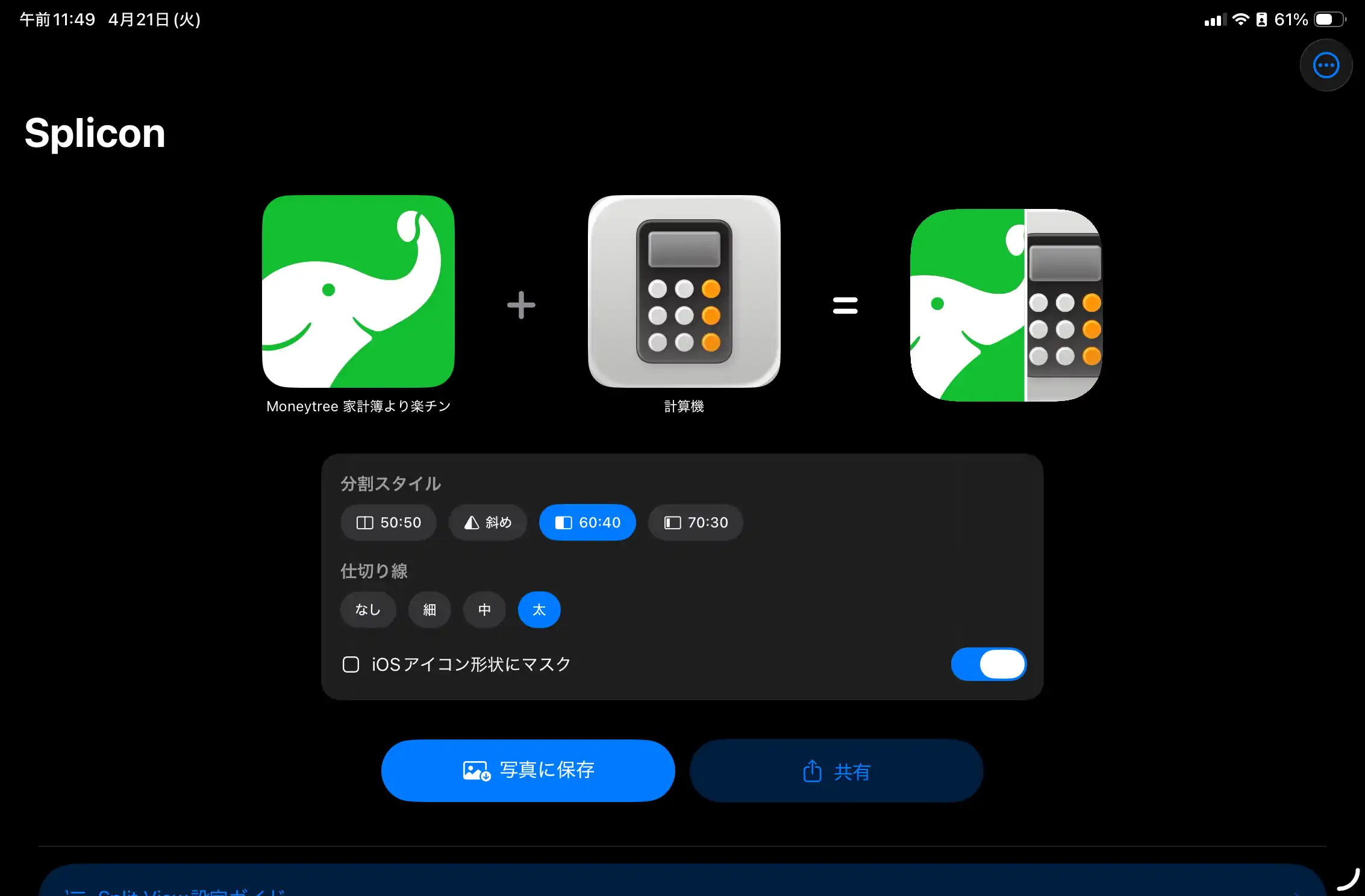
Review your budget and crunch numbers without leaving the app.
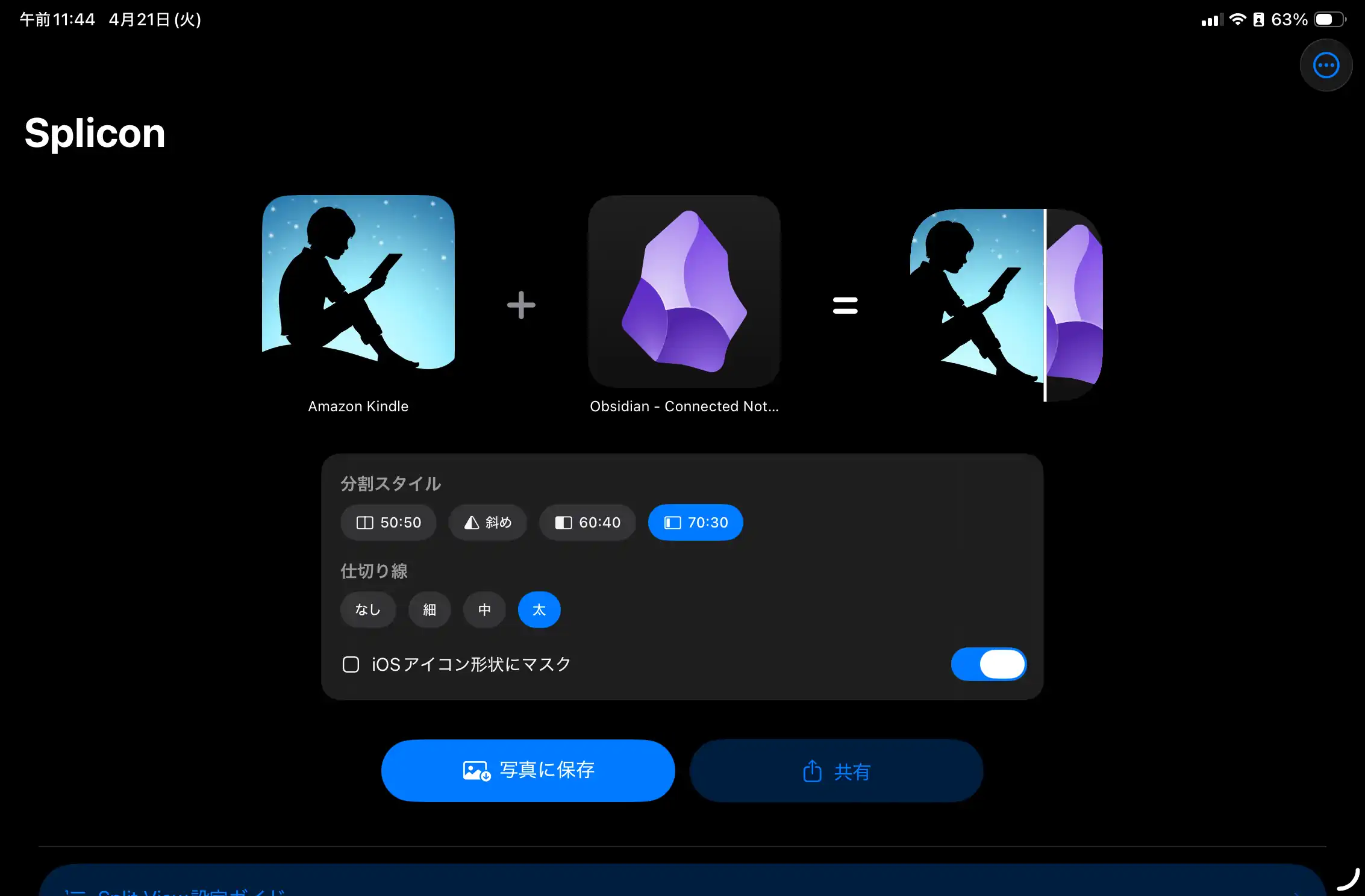
Read and build your knowledge graph simultaneously. Ideas connect as you read.
Just follow the in-app guide. Even if you've never used Shortcuts before, you'll be set up in minutes.
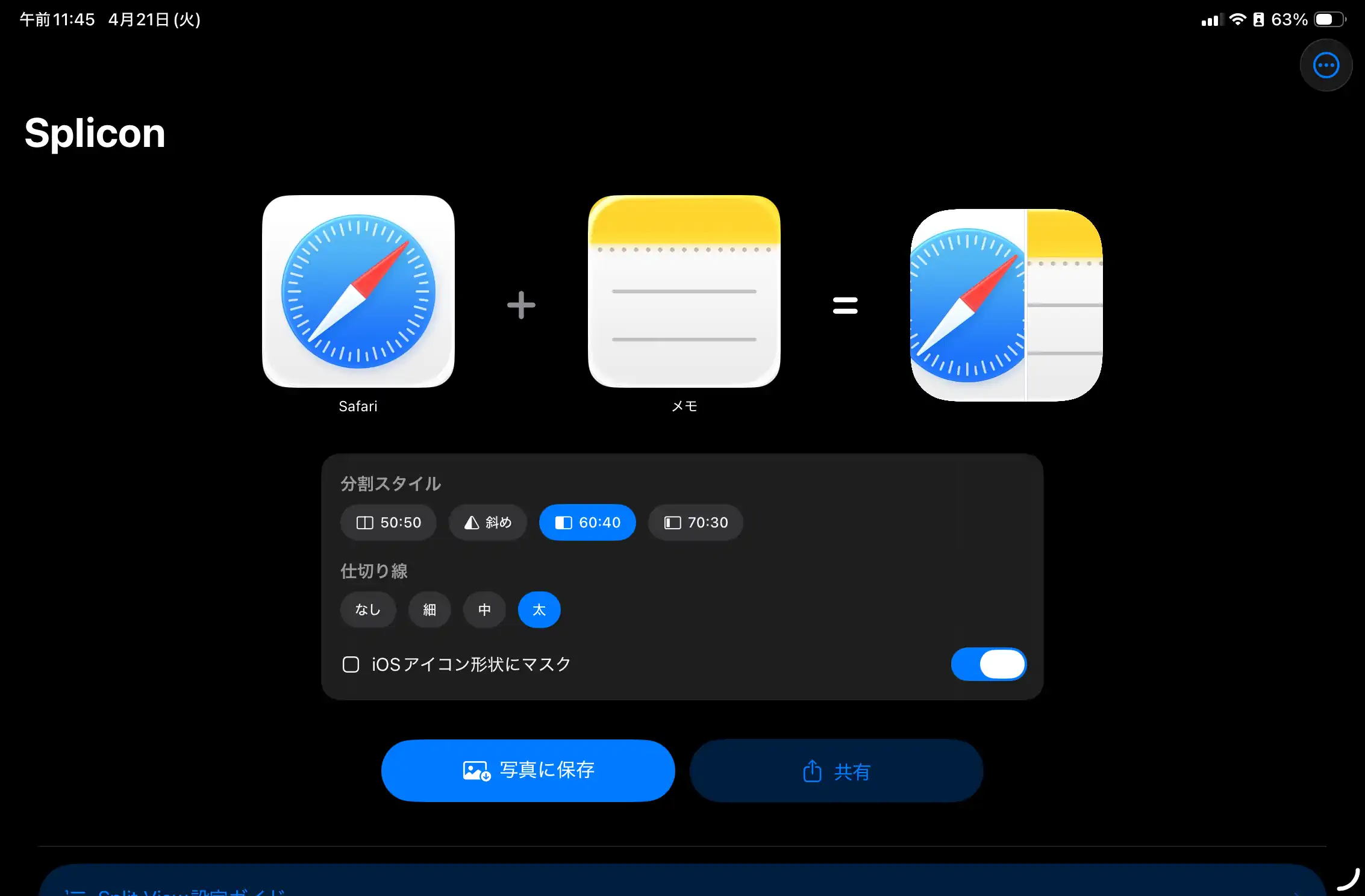
Search for the two apps you want to pair. Splicon generates the icon automatically.
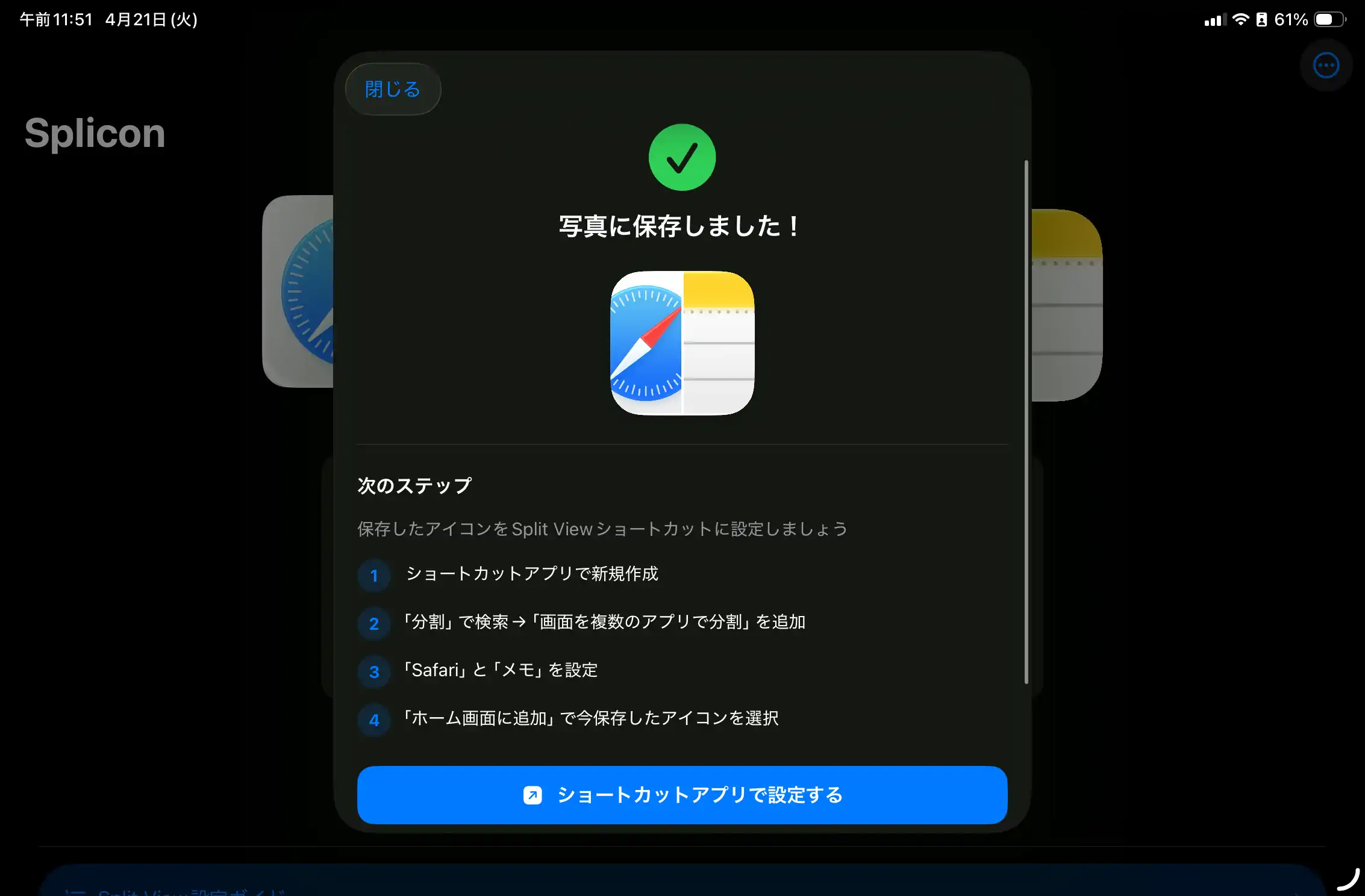
Save the generated icon to your photo library. You'll use it in the next step.
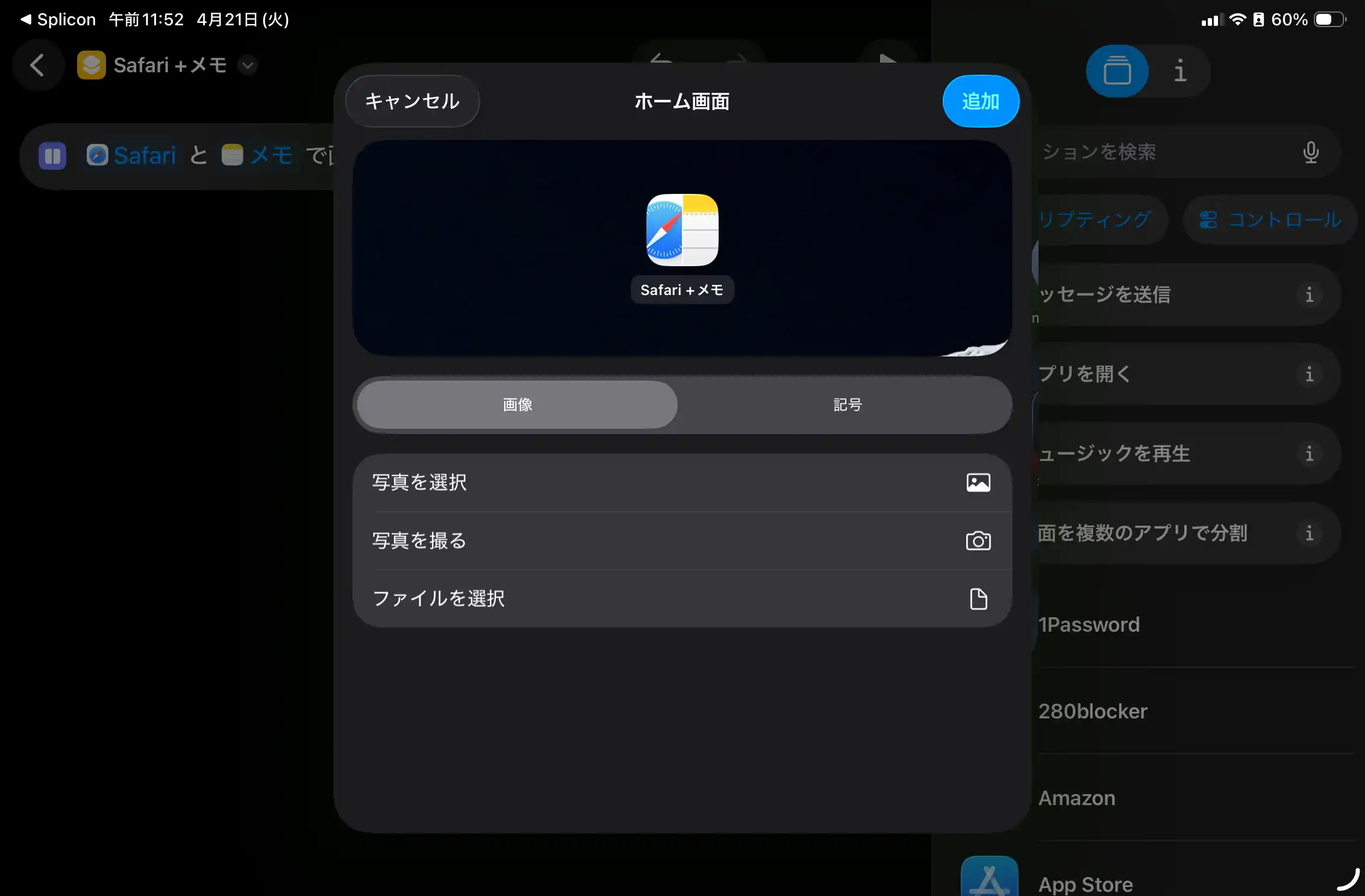
In the Shortcuts app, choose "Select Photo" and pick the icon you just saved.
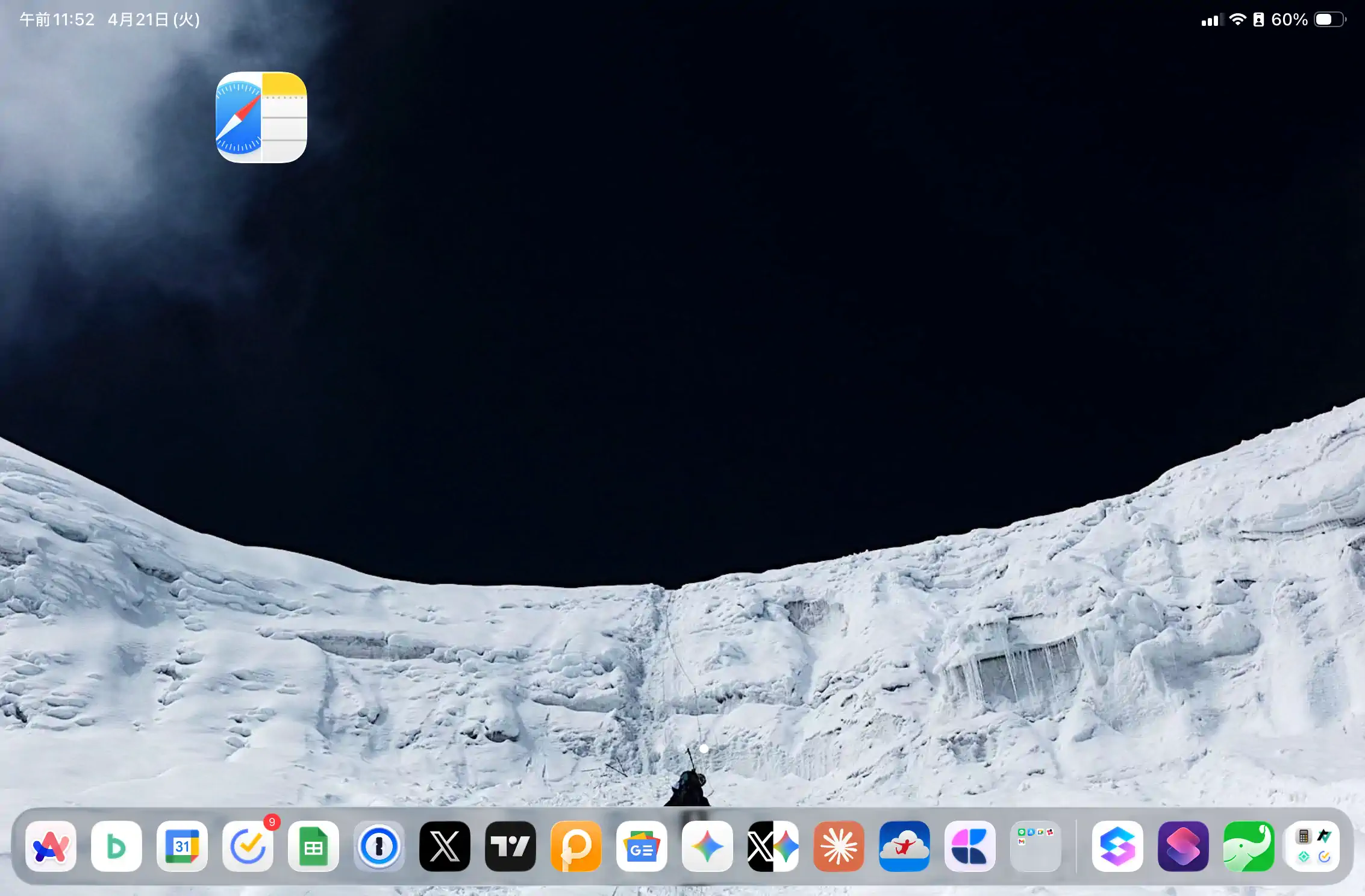
Add the shortcut to your Home Screen. One tap now launches Split View instantly.
The old way to open Split View on iPadOS requires multiple steps every single time.
Splicon collapses all of that into one tap.
Tap the icon and both apps open side by side at the exact ratio you chose. Every time.
Real app icons, beautifully composited. They blend right into your Home Screen.
50:50, 60:40, 70:30, and diagonal. Pick the ratio that fits your workflow.
Search any App Store app directly. No need to have it installed on your device.
Past combinations are saved. Recreate your favorite layout in one tap.
Everything runs on-device. No data is ever sent to external servers.
Try it free with 3 icon generations. When you're ready, one payment unlocks everything — forever.
Create your first 3 Split View icons for free — no account needed.
Requires iPadOS 17.0 or later / iOS 17.0 or later